
Midjourney V7 Omni Reference: A Practical --oref Guide
Master Midjourney V7's --oref and --ow parameters to achieve consistent character, product, and object references across your image generations.
Midjourney V7's Omni Reference (--oref) is a powerful parameter designed to maintain the identity of a person, object, vehicle, or non-human creature across multiple image generations, automatically activating V7 and costing twice the GPU time of a regular V7 job [S3]. This guide provides a practical workflow for leveraging --oref and its companion --ow (Omni Weight) to achieve reproducible results, understand its limitations, and decide when to use it over a V8.1 image prompt.
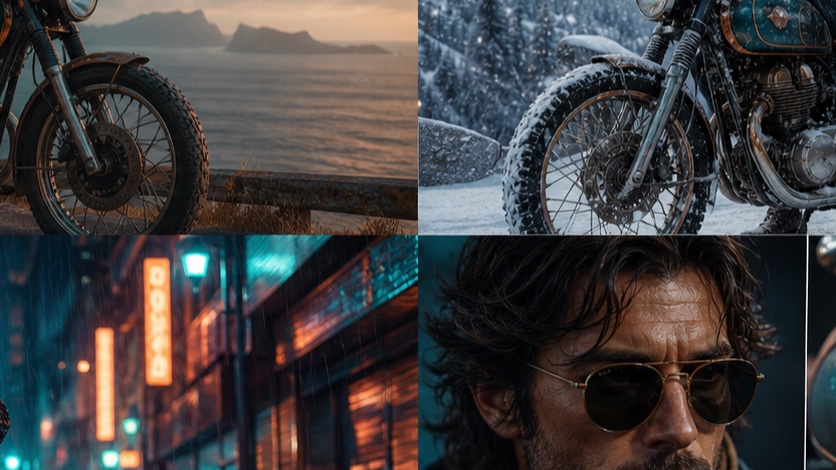
What is Omni Reference in Midjourney V7?
Omni Reference (--oref) is a Midjourney V7-specific feature that allows you to provide a single reference image to guide the generation of a consistent subject [S3]. Unlike general image prompts, --oref focuses on transferring the core identity of a specific entity—be it a character, a product, or an animal—into new scenes and styles. It's particularly useful for maintaining visual continuity when developing narratives, product mockups, or character studies.
Key characteristics of Omni Reference:
- V7 Exclusive:
--orefis only available in Midjourney V7 [S1]. It automatically switches your job to V7, even if you're currently using a newer default version like V8.2. - Subject-Focused: It excels at carrying the identity of a person, object, vehicle, or non-human creature [S3].
- Single Image Input: You provide one URL to an image that serves as the reference [S3].
- Text Prompt Required: An accompanying text prompt is always necessary to describe the desired scene, action, or style [S3].
- GPU Cost: Omni Reference jobs consume twice the GPU time of a standard V7 job [S3].
- Incompatibilities: It cannot be used with Fast, Draft, Conversational Mode,
q4, Vary Region, Pan, or Zoom Out [S3].
How to use --oref and --ow
To use Omni Reference, you'll need a reference image URL and a text prompt. The basic syntax is straightforward:
/imagine [your text prompt] --oref [URL to reference image]
The --ow (Omni Weight) parameter controls how strongly Midjourney adheres to the visual characteristics of your reference image [S3]. It ranges from 1 to 1000, with a default of 100 [S3]. The provider recommends staying below 400 for typical stylized generations [S3].
Steps for using --oref:
- Select a clear reference image: Choose an image where the subject is well-lit, clearly visible, and ideally in a neutral pose or context if you want maximum flexibility.
- Upload your image: If your image isn't already online, upload it to a platform that provides a direct image URL (e.g., Discord, Imgur, your own website).
- Construct your prompt: Combine your desired scene description with the
--orefparameter and the image URL. - Experiment with
--ow: Adjust--owto fine-tune the balance between the reference image's influence and your text prompt's creative direction.
Example Prompt Structure:
/imagine a futuristic detective in a neon-lit alley, rain falling --oref https://example.com/detective-ref.jpg --ow 200
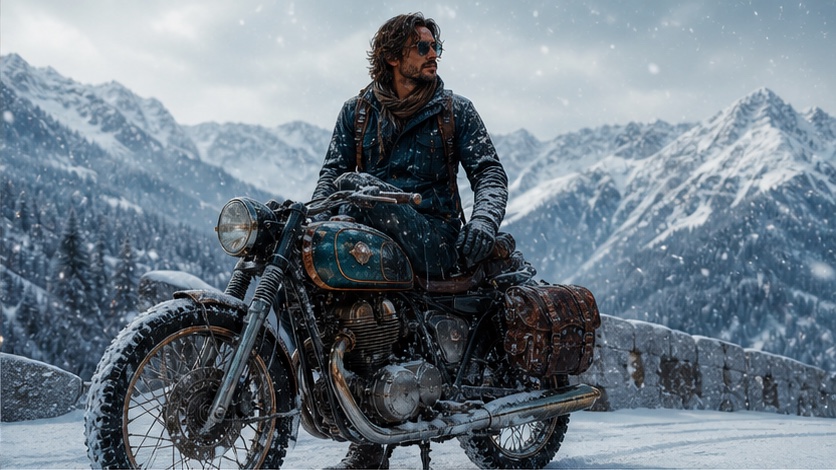
What changes at low, medium and high Omni weight?
The --ow parameter is crucial for controlling the fidelity to your reference image. Understanding its impact at different ranges will help you achieve your desired outcome.
| --ow Range | Characteristics
Character, product and object-reference workflows
Omni Reference shines in scenarios requiring consistent visual identity. Here are workflows for different subject types:
Character Consistency Workflow
Goal: Maintain a character's appearance (face, hair, build, outfit details) across various scenes, poses, and expressions.
Reference Image Selection:
- Ideal: A clear, well-lit headshot or full-body shot of the character in a neutral pose. Avoid strong expressions or complex backgrounds.
- Avoid: Images with heavy stylization you don't want to carry over, or images where the character is obscured.
Workflow Steps:
- Establish the Base Character: Generate your initial character design using a detailed text prompt. Once satisfied, select one image as your
--orefsource./imagine a young female elf, long silver hair, emerald eyes, wearing leather armor, fantasy art --v 7 - Apply
--oreffor Scene Variations: Use the generated character image as--orefand modify your text prompt for new scenarios./imagine the young female elf, sitting by a campfire, looking thoughtful --oref [URL to base elf image] --ow 150 - Adjust
--owfor Detail vs. Flexibility:- Higher
--ow(200-400): For maintaining intricate details like specific facial features or armor patterns. The character will look very similar. - Lower
--ow(50-100): For allowing more stylistic interpretation or adapting the character to new outfits/expressions while retaining core identity.
- Higher
Product Mockup Consistency Workflow
Goal: Showcase a specific product (e.g., a unique bottle, a custom gadget) in different environments or with varying lighting.
Reference Image Selection:
- Ideal: A clean, isolated shot of the product against a neutral background. Multiple angles can be useful for different shots.
- Avoid: Images with distracting elements or heavy shadows that might be misinterpreted as part of the product's design.
Workflow Steps:
- Isolate the Product: Ensure your reference image clearly features only the product you want to reference.
/imagine a sleek, minimalist smart speaker, matte black finish, cylindrical design, studio lighting --v 7 - Place Product in Context: Use the product image as
--orefand describe the desired setting./imagine the sleek smart speaker on a modern wooden desk, sunlit window in background --oref [URL to smart speaker image] --ow 300 - Test
--owfor Detail Retention:- Higher
--ow(300-500): Crucial for maintaining precise product dimensions, logos, and material textures. Essential for product visualization. - Lower
--ow(100-200): Might allow for more artistic interpretation of the product, potentially altering minor details, suitable for conceptual art.
- Higher
Object/Prop Consistency Workflow
Goal: Replicate a specific non-human object (e.g., a unique ancient artifact, a custom vehicle) in various scenes or styles.
Reference Image Selection:
- Ideal: A well-defined image of the object, showing its key features and proportions. Consider different angles if the object has complex geometry.
- Avoid: Blurry images or images where the object is heavily stylized in a way you don't want to replicate.
Workflow Steps:
- Define the Object: Generate or find a clear image of the object.
/imagine an ornate golden chalice, encrusted with rubies, medieval style --v 7 - Integrate into Scenes: Use the object image as
--orefto place it in new contexts./imagine the ornate golden chalice on an altar in a dark, ancient temple --oref [URL to chalice image] --ow 250 - Fine-tune with
--ow:- Higher
--ow(250-450): Best for preserving the exact design, material, and intricate details of the object. - Lower
--ow(75-150): Allows for more stylistic variations of the object, potentially adapting its form or material slightly to fit the new scene's aesthetic.
- Higher
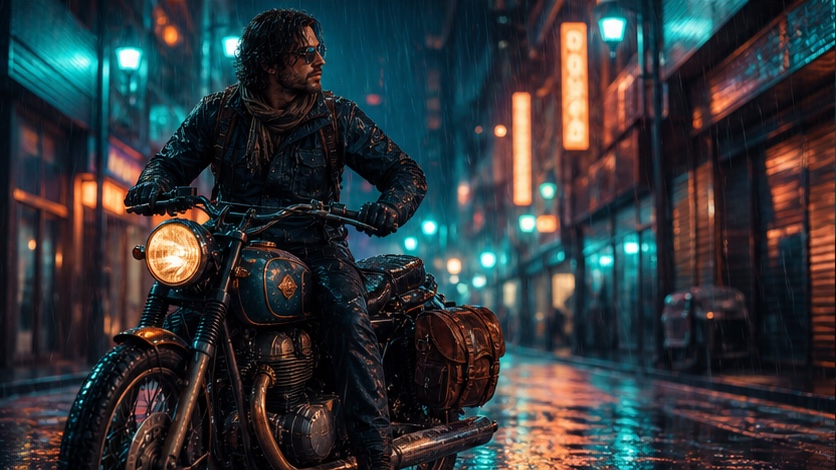
What Omni Reference cannot do
While powerful, Omni Reference has specific limitations you should be aware of to avoid frustration:
- Not a Style Transfer:
--orefis for identity transfer, not style transfer. For style, use--sref(Style Reference) [S2]. Combining--orefwith--srefcan be effective for transferring both identity and style. - No Guaranteed Exact Duplication: While it aims for consistency, it won't produce pixel-perfect copies. There will always be some variation, especially in details or when the text prompt strongly conflicts with the reference.
- Incompatible with Advanced V8.1/V8.2 Features: Omni Reference is a V7 feature and cannot be used with V8.1/V8.2's HD mode, Pan, Zoom Out, or Vary Region [S1, S3]. If your workflow relies on these,
--orefis not the right choice. - Not for Complex Scenes:
--orefworks best with a single, clearly defined subject. Using it with a reference image containing multiple subjects or a complex scene might lead to unpredictable results. - Limited to One Reference Image: You can only provide one image URL for
--oref[S3]. If you need to reference multiple distinct elements, you might need to generate them separately or use traditional image prompts.
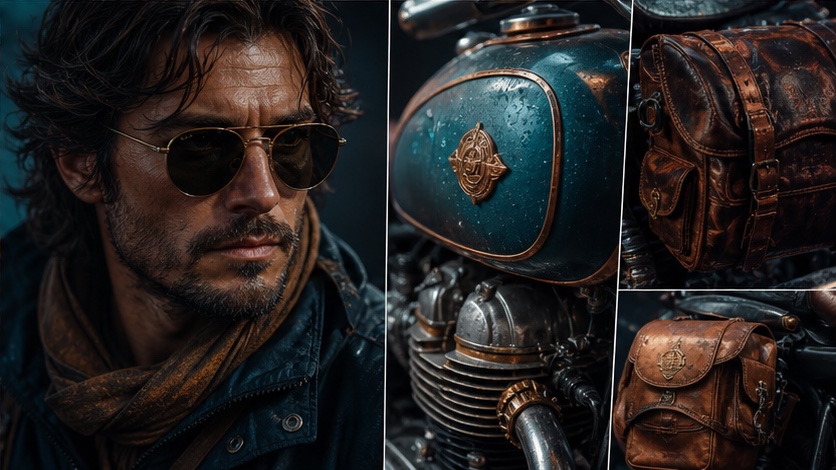
Should you use V7 Omni Reference or a V8.1 image prompt?
The choice between V7 Omni Reference and a V8.1 image prompt depends on your specific goals and workflow requirements. Here's a decision framework:
| Feature/Goal | Use V7 Omni Reference (--oref)
FAQs
Q1: Can I use --oref with multiple reference images?
A1: No, --oref currently supports only one image URL [S3]. For multiple image influences, consider using traditional image prompts in V8.1/V8.2 or generating components separately.
Q2: Why is my --oref job taking longer or costing more GPU time?
A2: Omni Reference jobs automatically activate V7 and cost twice the GPU time of a standard V7 job [S3]. This is normal due to the increased processing required for identity transfer.
Q3: My character's outfit keeps changing. How can I fix this?
A3: Ensure your reference image clearly shows the desired outfit. Increase your --ow value (e.g., to 200-400) to give more weight to the reference's details. Also, explicitly describe the outfit in your text prompt to reinforce it.